iPad Self-Check In Application
Installing the Application
The iPad/iOS self-check in application is called “e-Ballroom Kiosk”. It is available in the app store by visiting this link:
https://apps.apple.com/us/app/e-ballroom-kiosk/id6762619352
Or, scan this QR code:

Demo Video
To see a demo of the application in action, click here.
Creating or Editing the iPad/Tablet Account Credentials
The iPad/iOS self-check in application runs with a limited privilege account. This is for security reasons as the iPad will typically be left exposed for use within a studio as a “kiosk”.
Note
Do not use the same email address or password as the studio or an instructor account.
Navigate to Settings > iPad/Tablet Account in the menu.
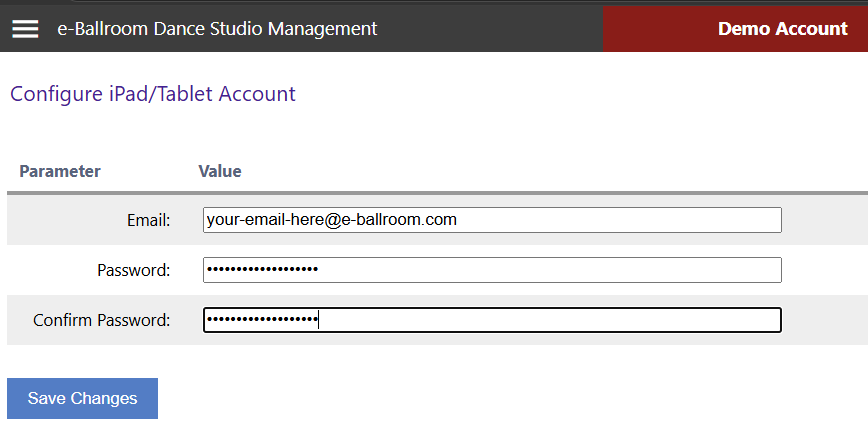
Set the email and password, then press “Save Changes”. If the account has been created before, this will change the password.
Logging In
Open the “e-Ballroom Kiosk” app, then login with the iPad credentials.
Search or Register Screen
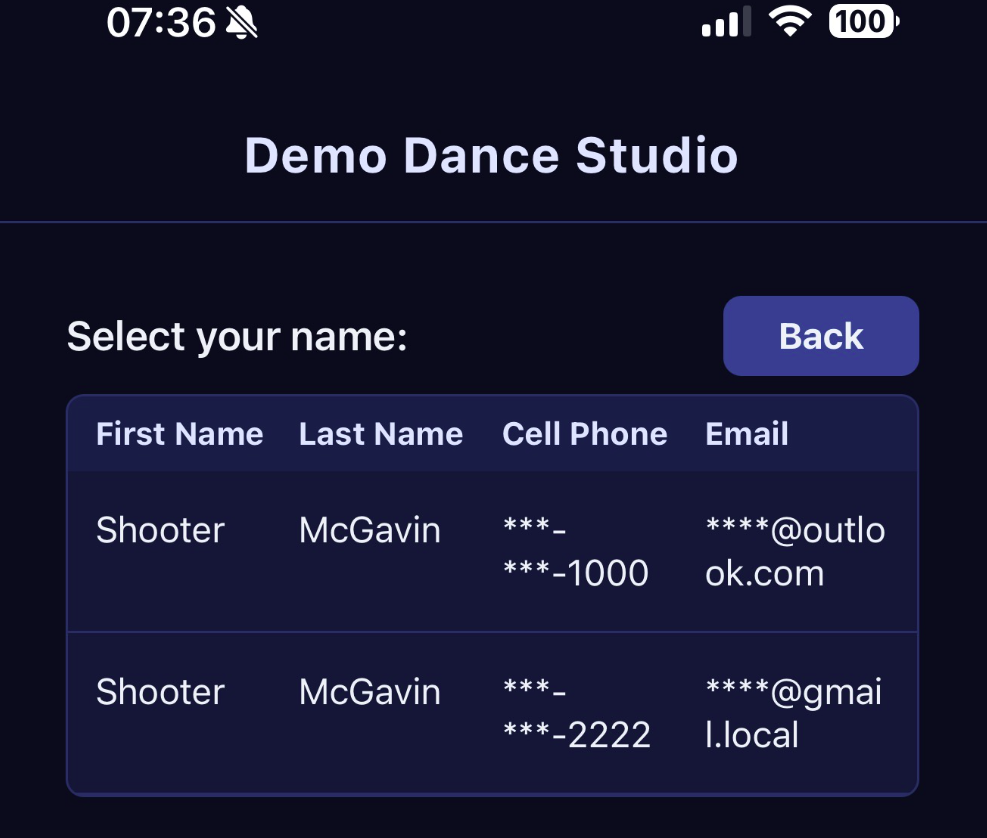
Customers can locate themselves using their cell phone (numeric only) or the first and/or last names. Partial matches to multiple individuals will be presented for confirmation; a redacted list of matches will be shown (cell phone, email, first and last name).
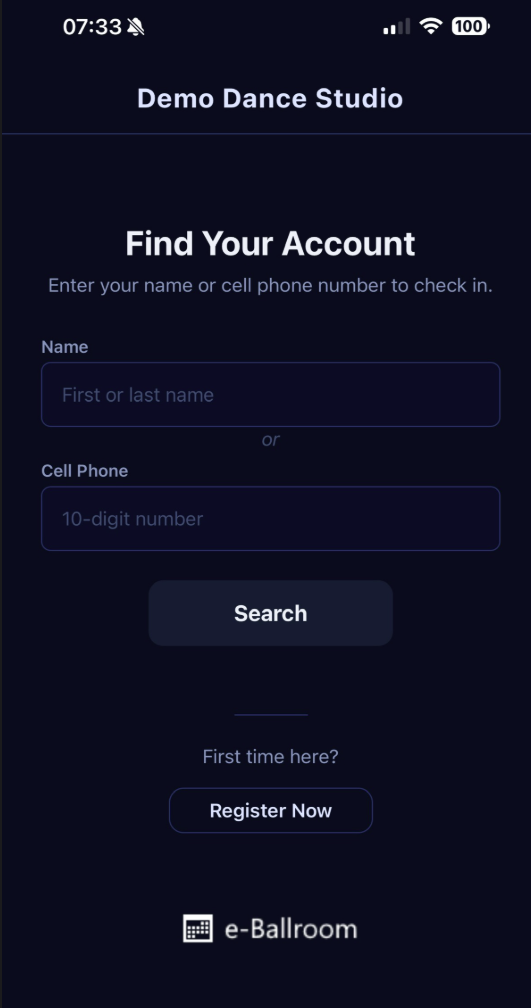
New customers who are not in your studio’s e-Ballroom account can register by clicking “Register Now”.
Multiple Matches
If multiple matches are returned, a list of redacted results is shown. Selection will then redirect the user to the check in screen.
Digital Waiver Integration
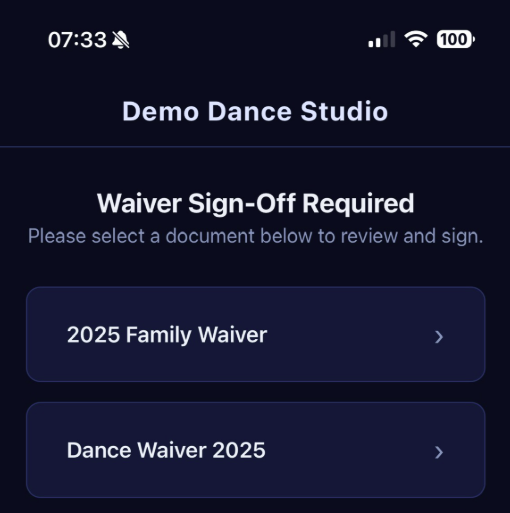
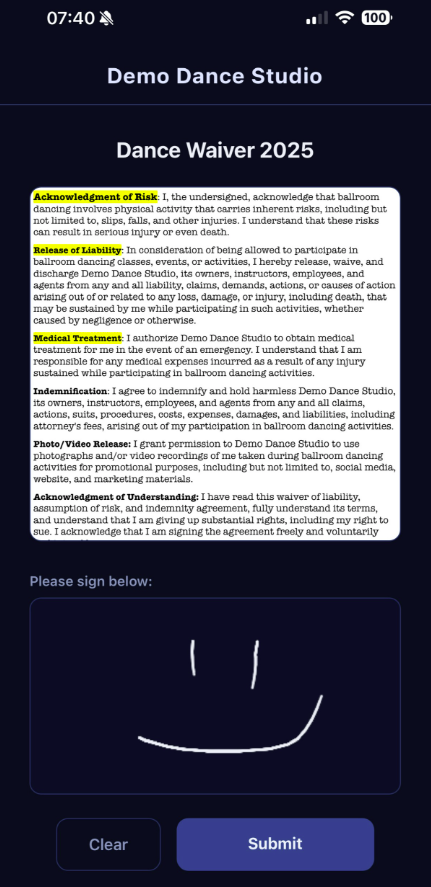
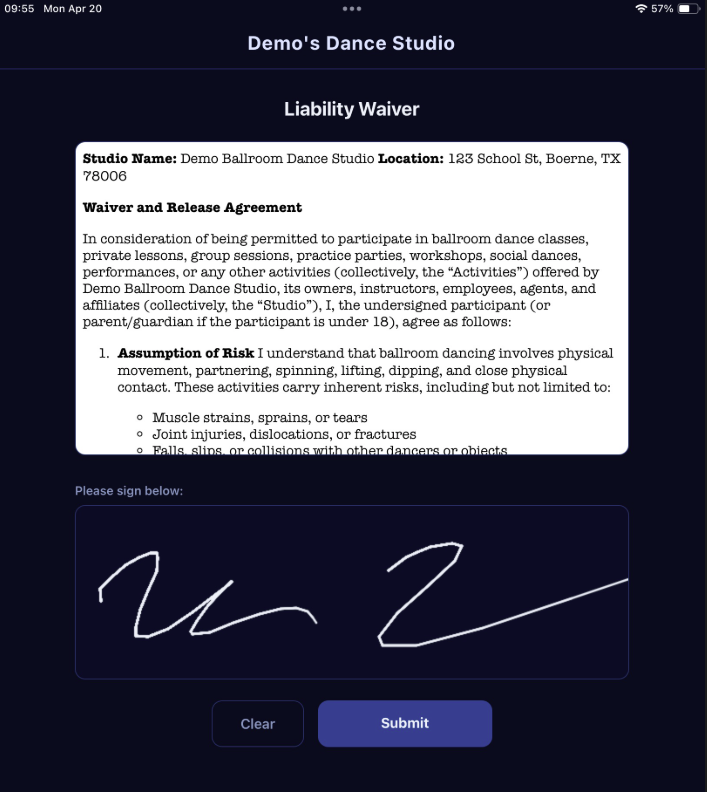
If you use the Waivers and Signatures add-on for e-Ballroom, customers that are lacking a waiver signature OR their waiver has expired can sign off on the appropriate waiver before check in.
Checking In
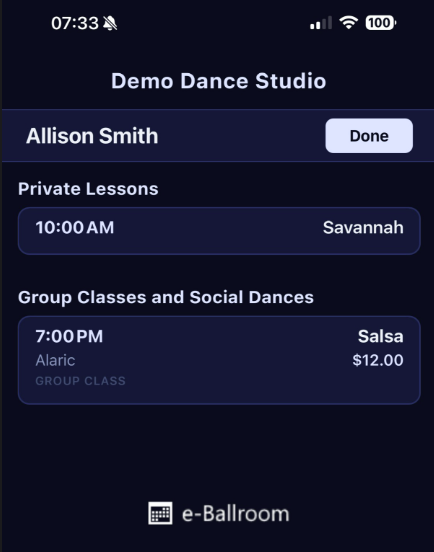
Customers can check in for today’s lessons only. Classes are shown grouped by type, with details on the class displayed for reference/deconfliction.
Supported Payment Types
| Lesson Type | Account Credit? | Contract/Package? | Membership? | Couples/Friends? |
|---|---|---|---|---|
| Private Lesson | Yes | Yes | No | No |
| Contract/Package | Yes | Yes | Yes | Yes |
Private Lessons
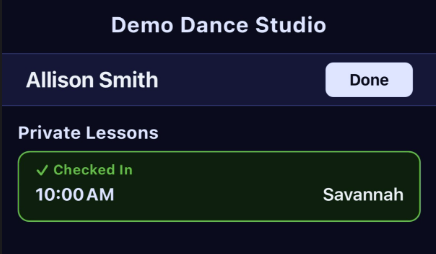
A customer’s private lessons are shown for check in. The lesson time and instructor name are shown. To check in, the customer taps on the lesson. They will be prompted to select a payment method, then check in. If no authorizations are available, they cannot self-check in.
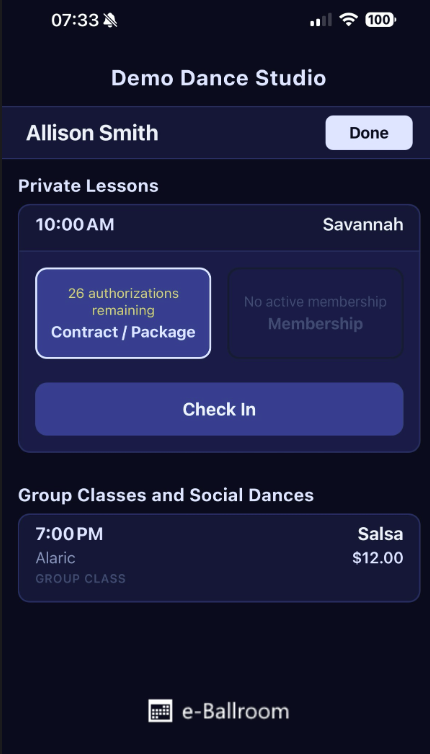
A green check in indicator will show they have successfully completed check in.
Group Class/Social Dance Check In
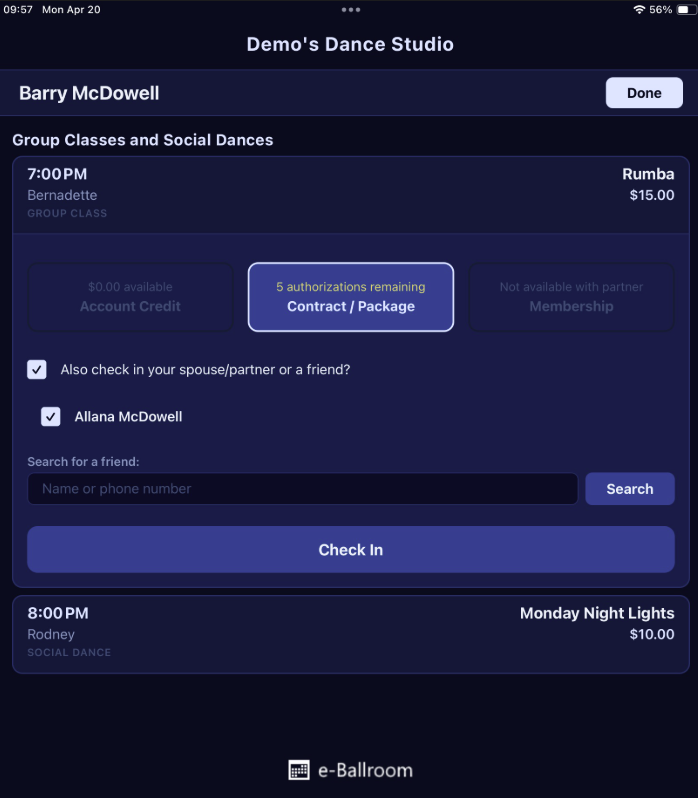
Customers can see today’s group classes and social dances in a grid. The time, cost per lesson, class name, class type, and instructor name are all visible. The customer simply needs to tap on the desired class, then they will be presented with a payment method selection.
NOTE: Spouse/friend check in is only available with account credit and contract/package payment methods.
If a spouse/partner is linked to the customer’s profile, the spouse/partner is pre-listed for selection as shown below.
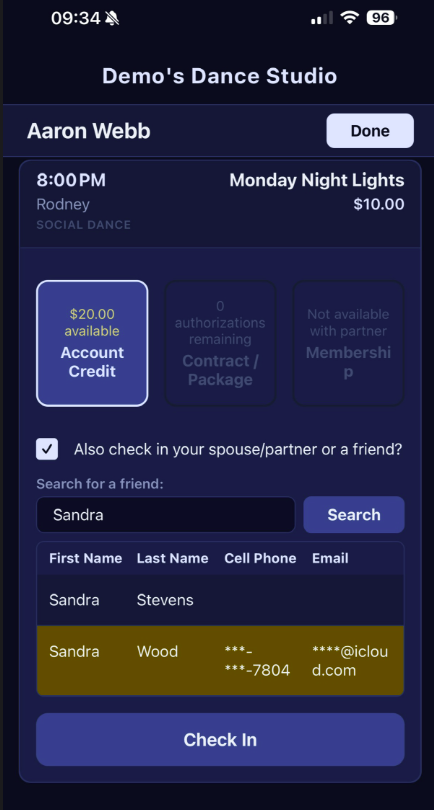
When searching for a friend (or unlinked spouse/partner), the customer can search by name or cell phone. They can then select from the results grid and press “Check In”. In the example below, Aaron searched for “Sandara”, received two results, and clicked “Sandra Wood”.
Upon successful check-in, the class will display as “green”.
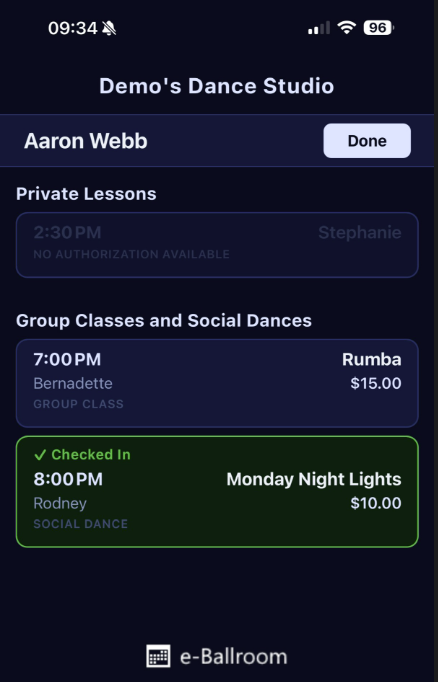
When complete, the customer can hit “Done”. After a timeout, the application will automatically refresh to the search screen if the customer does not hit “Done”.
New Customer Registration
New customers can register directly on the iPad. The iPad only collects basic information for speed; name, email, cell phone, and referral.
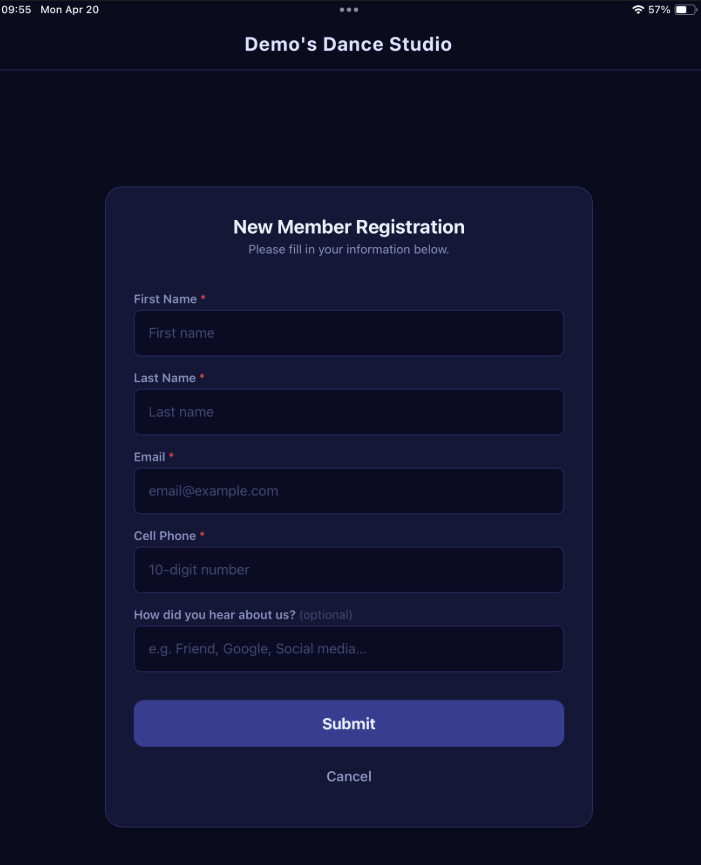
If you use the Waivers & e-Signatures feature of e-Ballroom and have a waiver in the system, it will prompt them to sign the waiver after submitting their information.
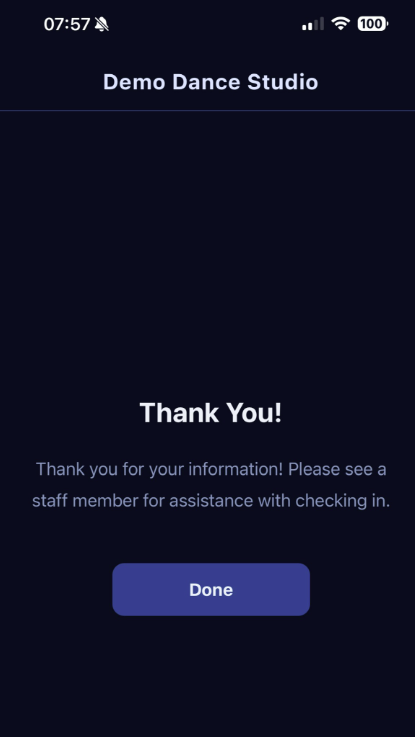
Since the customer will not have any authorizations or account credits on file, they will be prompted to see a studio staff member to pay for their class.